New to VectorGOLF
Complete your profile and bag
Why this matters for insight
VectorGOLF is built on launch physics and normalized data. “AI-assisted” features and written summaries sit on top of that foundation. When your profile and bag are complete, the system can:
- Anchor expectations. Handicap, index goal, age, gender, and what you are working on help calibrate carry and dispersion targets so green, amber, and red status on your metric grid means something for your speed and skill band.
- Resolve ambiguity. CSV exports and lab entries reference clubs by name. Your bag tells the engine which head, shaft, and loft you actually play so session averages and D-plane style diagnostics line up with the club you hit.
- Add useful context. Ball model, rounds per month, and location fields (including zip for home weather on the dashboard) make narratives and planning cues relevant to how often you play and where you practice.
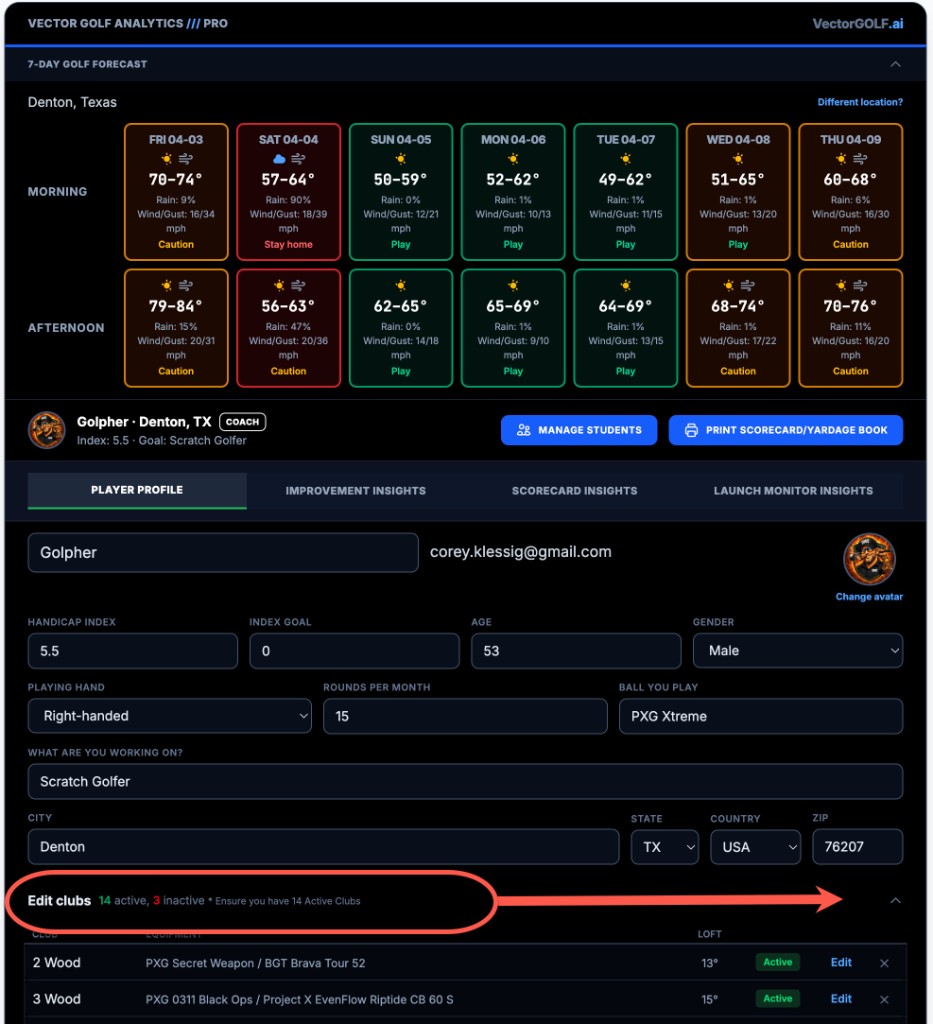
What to fill in: Player Profile
In Dashboard → Player Profile, save at least:
- Handicap index and index goal
- Age, gender, and playing hand (dexterity)
- What are you working on? (short goal line—e.g. start line, compression, wedge distance control)
- Rounds per month and ball you play
- Optional but useful: city, state, country, and zip (zip powers the home weather strip on the dashboard)
Profile fields auto-save shortly after you change them (or when you leave a field), so the server stays in sync for reports and lab flows.
What to fill in: your bag (14 clubs)
Tap Edit clubs on the profile tab. You can carry up to 14 active clubs in play; that matches how we structure gapping and labeling in analysis. For each club you rely on in sim or on the range, set:
- Club type and manufacturer model where applicable
- Loft, lie, and shaft details you know (even approximate values help)
If a slot is wrong—say a 6-iron is saved as a 7-iron—path and face-to-target language can look “off” compared to what you felt at impact. Matching the bag to reality keeps VECTOR GOLF ANALYTICS /// PRO reports coherent.
Examples
Two players both swing a 7-iron at ~88 mph. The 25-index golfer and the 5-index golfer should not share the same carry “green zone.” Your handicap and goals are inputs so the metric grid compares you to a sensible band, not a one-size chart.
Your CSV says “7i” but the club in the bag is a strong 6-iron with less loft. Face-to-path and start-line commentary are still mathematically correct for the numbers, but the story fits the wrong club. Fixing the bag removes that mismatch.
If the goal field is empty, generic improvement text has less to grab onto. A single line like “tighten start line with driver” or “wedge distance gaps” steers drills and priorities toward what you actually want to change.